![SMPTE_logoWHITE-RGB-2.png]](https://www.smpte.org/hs-fs/hubfs/SMPTE_logoWHITE-RGB-2.png?height=40&name=SMPTE_logoWHITE-RGB-2.png)
Git provides the ability to trigger custom scripts known as hooks when certain important actions occur. It is advisable to install the git pre-commit hook, which validates the main element and detects errors before a document can be committed.
The pre-commit hook is not installed when the git repository is cloned; therefore, it is necessary to add it to the cloned repository. To add the pre-commit hook:
Step 1: In Explorer, change the settings so that you can view the hidden files and folders.
Step 2: Go to the top level of the repository clone. The .git folder, which is hidden by default, displays. Note that it is grayed out, indicating that it is usually hidden (Figure 1).
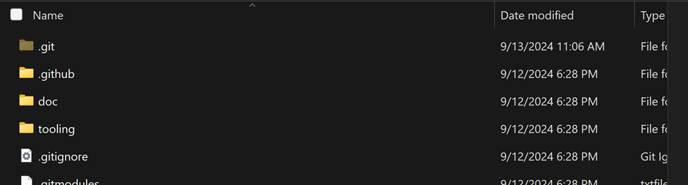
Figure 1 — Displaying the .git Folder
Step 3: Create a text file that contains the following code:
#!/bin/sh

if test -f "tooling/scripts/validate.mjs"; then

validate=./tooling/scripts/validate.mjs

else

validate=./scripts/validate.mjs

fi


node $validate ./doc/main.html
Step 4: Save the file with the name pre-commit, with no extension, to .git/Hooks (Figure 2):
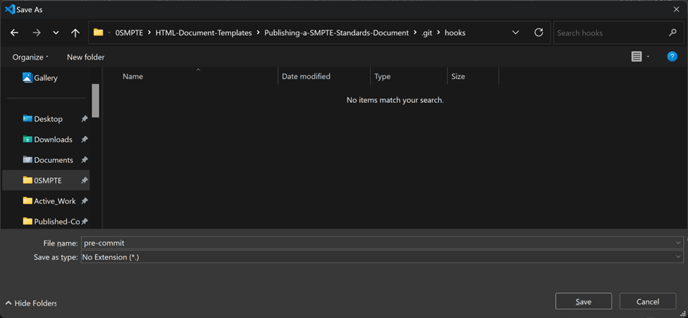
Figure 2 — Saving the pre-commit file
The pre-commit hook is now installed.
NOTE The Hooks folder (Figure 3) contains a set of files with the .sample extension. The files are sample scripts that perform various operations. The .sample extension disables the files from running. After adding the pre-commit file, the Hooks folder contains two files with the name pre-commit: pre-commit.sample and pre-commit. Only the pre-commit file, which is customized for the SMPTE HTML editing operation, will run.
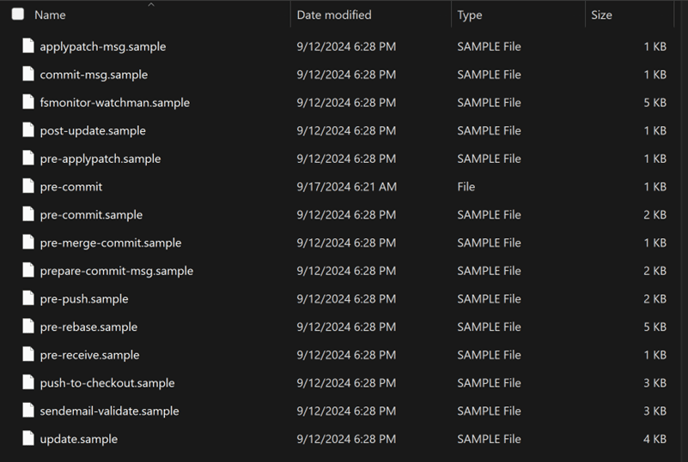
Figure 3 — Hooks Folder Showing pre-commit File
Step 5: You are now ready to edit! Proceed to Editing Preparation/Edit Your Document.