![SMPTE_logoWHITE-RGB-2.png]](https://www.smpte.org/hs-fs/hubfs/SMPTE_logoWHITE-RGB-2.png?height=40&name=SMPTE_logoWHITE-RGB-2.png)
Previously, we mentioned briefly that a user can also access SMPTE SKN documents through Microsoft SharePoint
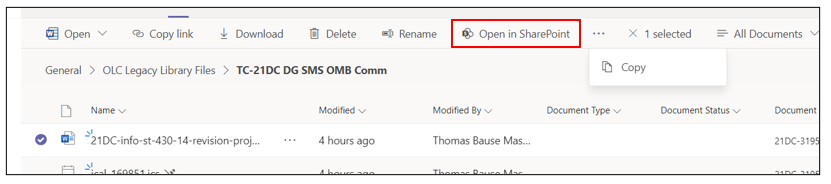
- Click on the “Open in SharePoint” link to open the same Teams folder view in SharePoint
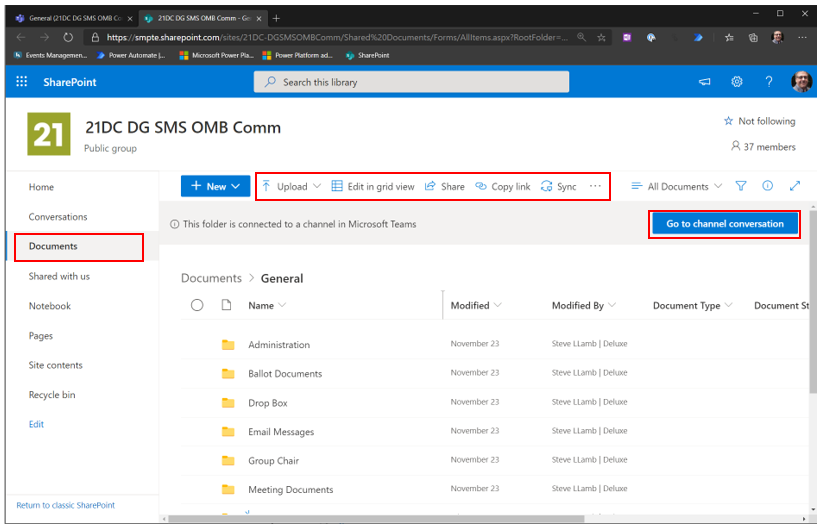
- The view looks similar to the Teams view but offers much more options
- You have a file and folder screen, a function bar on top and some search and filter functions
- Note the ellipsis menu (the 3 dots) next to “Sync”
- You can go back to teams by clicking “Go to channel conversation”
- There are many menu items on the left but we are only interested in “Documents”
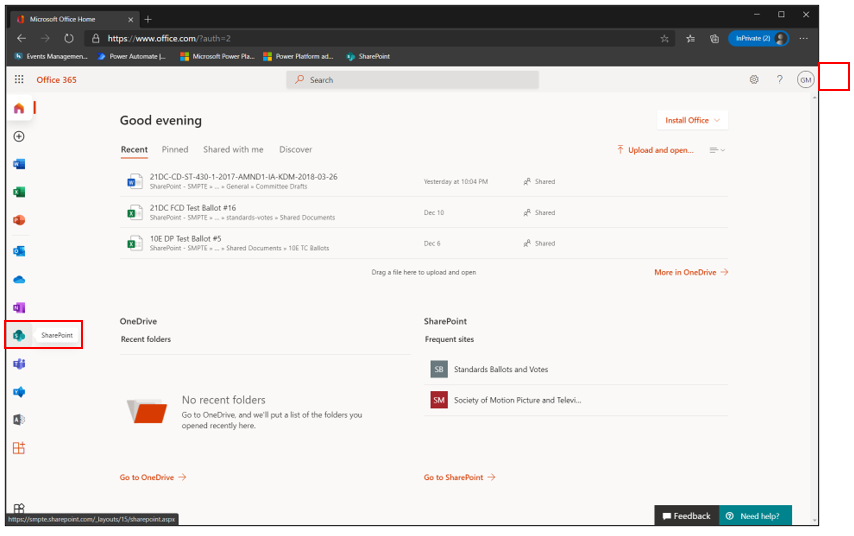
- You can go directly to SharePoint by entering “office.com” directly into your browser address bar. Sign in with your SMPTE credentials and click on the SharePoint icon.
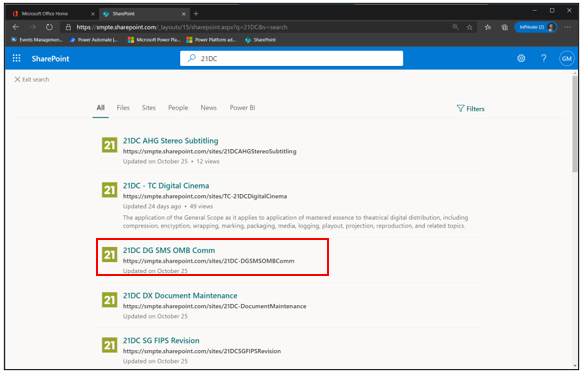
- You will get to the SharePoint site where you can search for your teams
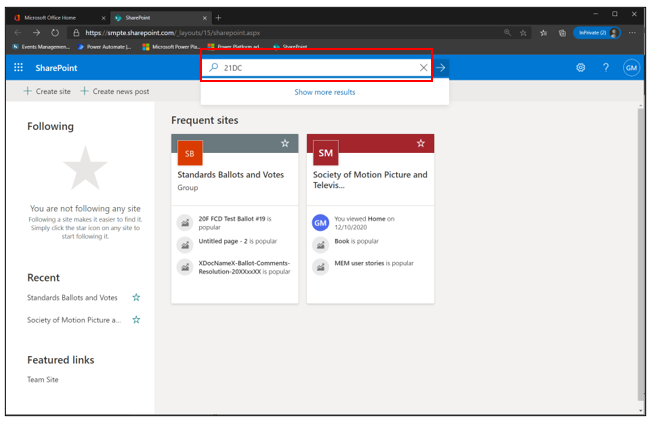
- Once you hit enter or clicked on “Show more results” you can select the team aka SharePoint site for your team.
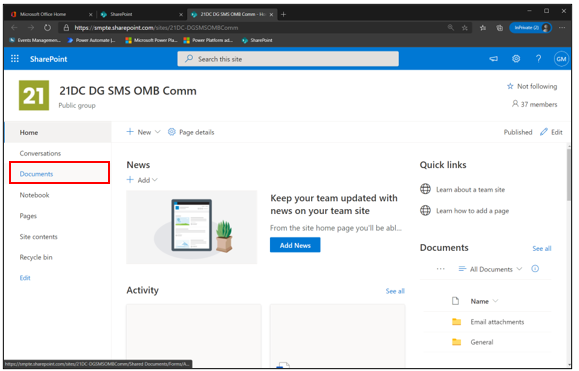
- The SharePoint site for the team gives you many options. For now we are only interested in documents. Click “Documents” on the left.
- The new screen will show you the channels for your team SharePoint site. We usually have one the “General” channel. Click on the :General” channel.
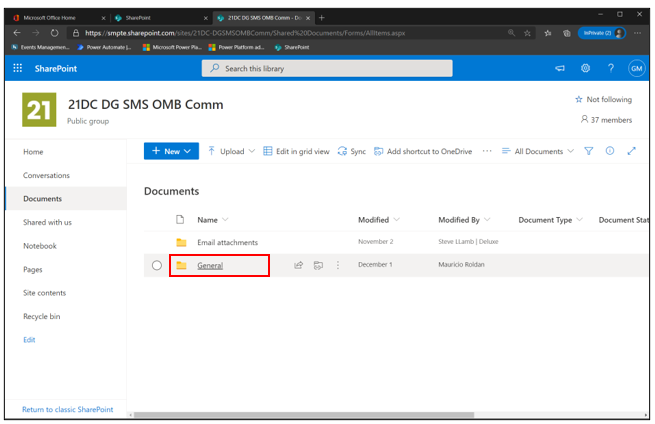
- You will see the same screen we save when we clicked on “Open in SharePoint” in teams
