![SMPTE_logoWHITE-RGB-2.png]](https://www.smpte.org/hs-fs/hubfs/SMPTE_logoWHITE-RGB-2.png?height=40&name=SMPTE_logoWHITE-RGB-2.png)
Contact githubsteering@smpte.org to request a GitHub repository for your document. This repository contains everything needed to edit your document, track changes, etc.
Once you have been notified that the repository has been created, then go to https://github.com/SMPTE. As shown in Figure 1, the most accessed repositories are displayed as tiles. Directly under the tiles, you can scroll the list of repositories, as well as search for repositories.
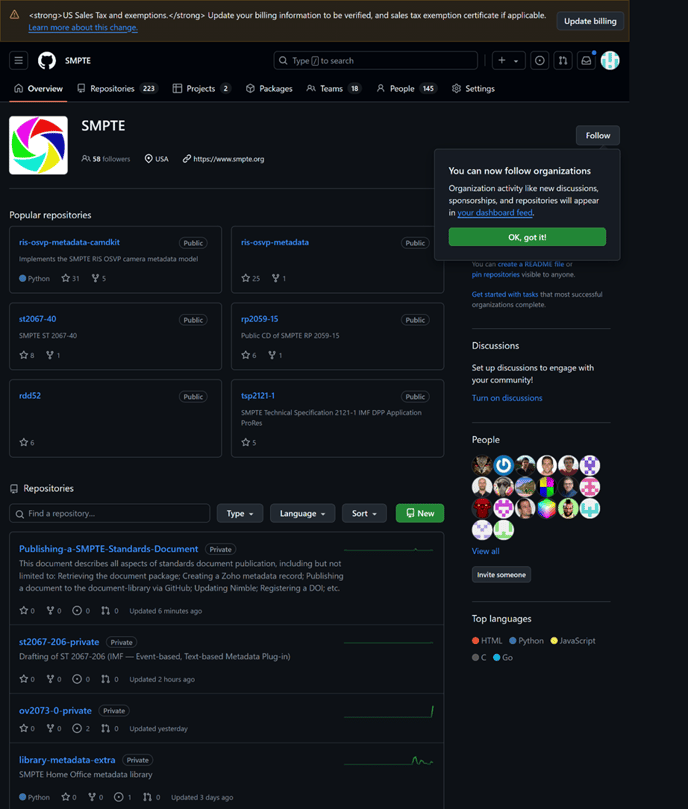
Figure 1 — SMPTE GitHub Site
To view your repository structure:
- Locate your repository and click to open. Figure 2 shows the contents of the Publishing-a-SMPTE-Standards-Document document repository.
NOTE The repository is stored as a .git file.
Do not edit this repository!
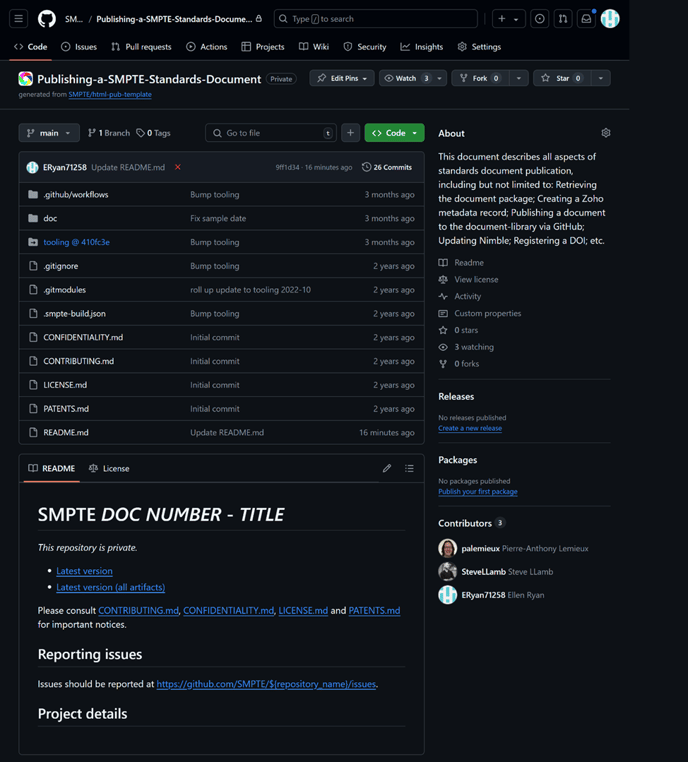
Figure 2 — Opened GitHub Repository
Click the green <> Code button at the towards the top right, and then from the HTTPS tab, select Copy url to clipboard (Figure 3). This is the filepath to your GitHub repository. You will need this when cloning the repository. Paste it Notepad or another text editor to keep it available. In this exercise, the filepath is:
https://github.com/SMPTE/Publishing-a-SMPTE-Standards-Document.git
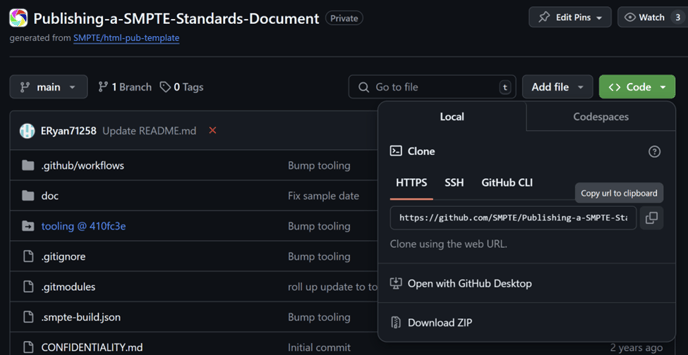
Figure 3 — Copying the Path to the GitHub Repository
To view the location of your document within the repository:
- Click the doc As shown in Figure 4, this folder contains the core main.html file with which you will merge the edits that you perform to your local cloned repository.
Do not edit the main.html file!
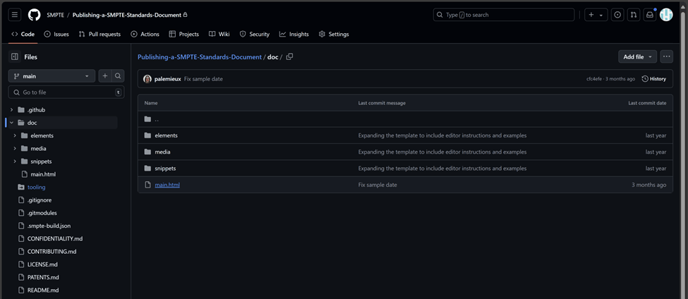
Figure 4 — doc Folder Contents
At this point, you can close out of the repository and proceed to Clone the Repository to Your System.