![SMPTE_logoWHITE-RGB-2.png]](https://www.smpte.org/hs-fs/hubfs/SMPTE_logoWHITE-RGB-2.png?height=40&name=SMPTE_logoWHITE-RGB-2.png)
Set Up GitHub Account
If you already have a GitHub account, then you may proceed to Install GitHub Source Control System and Set Up Access,
To create a GitHub account:
Step 1: Go to github.com.
Step 2: At the upper right corner, click the Sign Up button:

Figure 1 — GitHub Sign up button
Step 3: The account creation page displays. Complete and then click Continue (Figure 2).
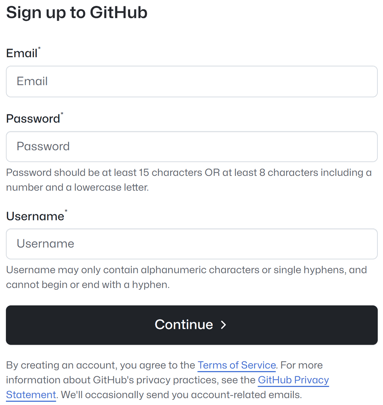
Figure 2 — GitHub Account Creation Form
Step 4: You will be asked to verify your account. Select the appropriate puzzle and complete (Figure 3).
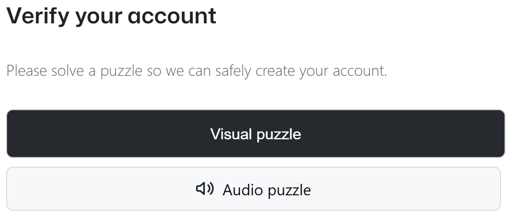
Figure 3 — GitHub Account Verification
Step 5: Enter the code that was sent to the email address that you specified in the account setup, and then click Continue (Figure 4).
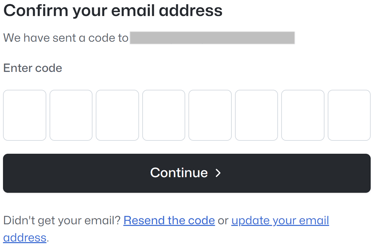
Figure 4 — GitHub Email Address Confirmation
Step 6: The Sign In to GitHub displays (Figure 5). Sign in.
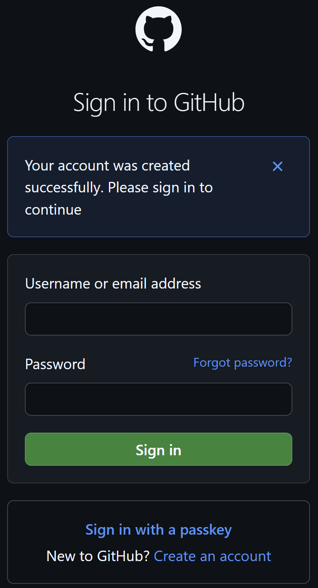
Figure 5 — GitHub Email Address Confirmation
Step 7: Once signed in, go to https://github.com/SMPTE/. The SMPTE GitHub Home Page displays (Figure 6). The page displays the publicly-available repositories.
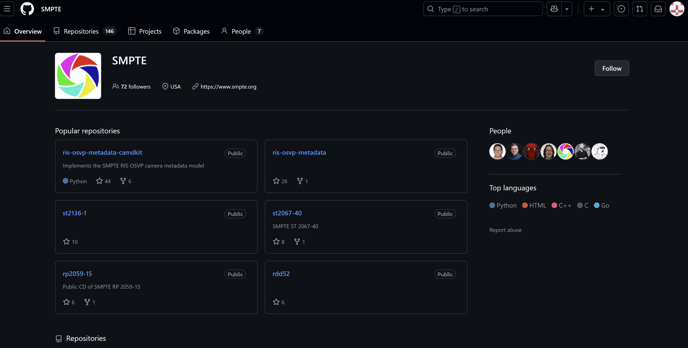
Figure 6 — GitHub Email Address Confirmation
Step 8: Proceed to Install GitHub Source Control System and Set Up Access.