![SMPTE_logoWHITE-RGB-2.png]](https://www.smpte.org/hs-fs/hubfs/SMPTE_logoWHITE-RGB-2.png?height=40&name=SMPTE_logoWHITE-RGB-2.png)
Once you were added to the SMPTE Microsoft 365 account you were also added to the SMPTE Standards Community (SC) team. It is the only team you do not have to join. Your initial view in teams may look like what is shown on the screen grab below.
- To join other teams, click on the compose icon
 on the top of the Chat list (New Teams) which combines the Teams Chat and Teams or the Teams list in the classic Teams which is separate from the chat list.
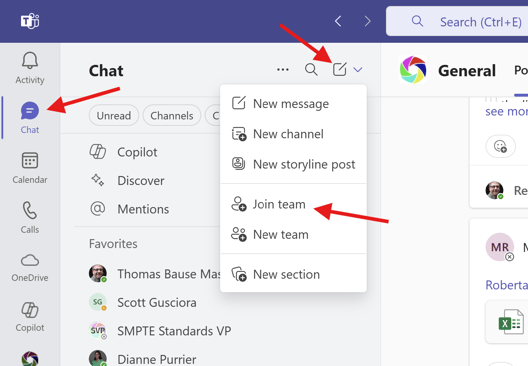
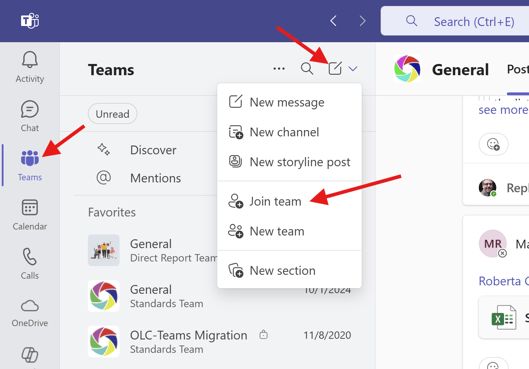
- The “Join a team” screen opens. You can join a team show on the screen by clicking “Join team” button on the team card

- If you know the name of the team you want to join, enter a search phrase in the search bar and hit enter.

- The team will be added to the Teams List on the left and the “Join Team” button on the team card will change to “Joined”

- You will be automatically added to the associated Technology Committee (TC) if you join a TC sub-group without first joining the parent TC.

Please note:
- Members are not allowed to create groups. Setting up groups is the responsibility of SMPTE HQ staff.
- Join the parenting TC first before you join any subgroups associated with the TC. We will automatically enforce this rule. Do not be surprised if you are automatically become a member of a TC after you joined a subgroup associated with that TC.