![SMPTE_logoWHITE-RGB-2.png]](https://www.smpte.org/hs-fs/hubfs/SMPTE_logoWHITE-RGB-2.png?height=40&name=SMPTE_logoWHITE-RGB-2.png)

On the main screen find the “Upload File(s)” button on the top right on the menu bar. Clicking the button will bring you to the file upload screen.
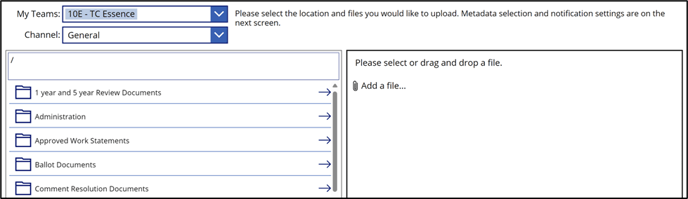 On this screen is a dropdown of all the Microsoft teams you are a member of. Select the corresponding team and channel you would like to upload file(s) to. On the left side of the screen will be a folder picker to locate the desired subfolder. On the right you can select up to 5 files to upload. They will all upload to the same location. Upon selecting a valid file to upload, the Next button will be available. Clicking it will bring you to the metadata annotation screen.
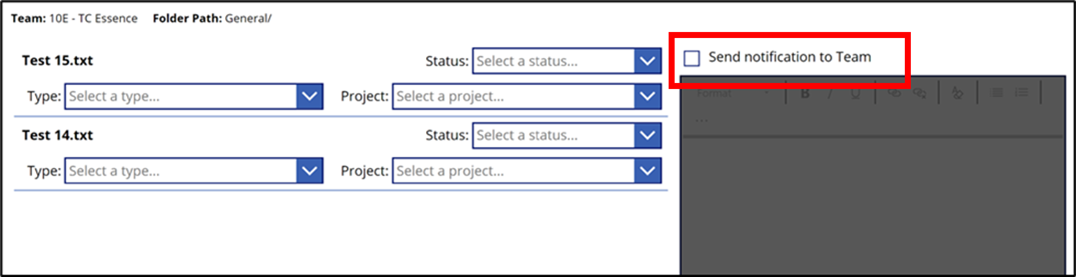
On this screen you can select the appropriate metadata for each file. These are currently type, status and project. The project dropdown will let you associate a document to a specific project.
Please note, new projects which have been just created in the Projects App may take up to one day to appear in the project dropdown.
Selecting the check box "Send notification to Team" will enable an email notification to be sent to all group members. When all information is correct, the Upload button can be pressed. The app status bar will indicate if the file was successfully uploaded or if some issues occur.
Please Note: You may need additional permissions in order to upload to some SharePoint folders.