![SMPTE_logoWHITE-RGB-2.png]](https://www.smpte.org/hs-fs/hubfs/SMPTE_logoWHITE-RGB-2.png?height=40&name=SMPTE_logoWHITE-RGB-2.png)
7.1 Repository Setup and Execution
The purpose of cloning the repository to your system is to copy a complete duplicate of the repository in which you can work, without disturbing the core document. The cloned repository is linked to the repository in GitHub, which enables you to update the core document with your edits. To copy the repository:
Step 1: Open VS Code. The following displays (Figure 1):
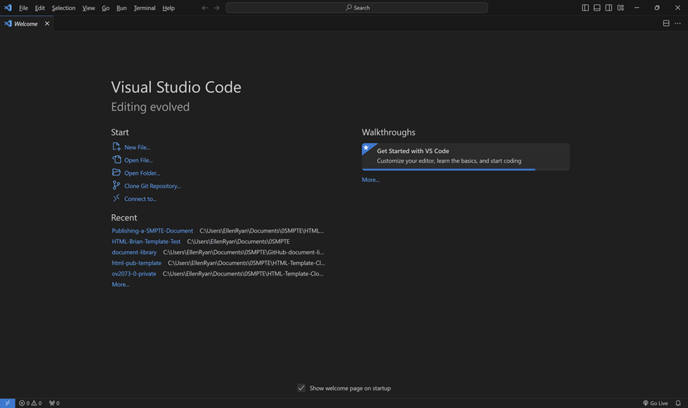
Figure 1 — VS Code Home Panel
Step 2: The terminal is where you will enter the commands that perform the clone. In the menu at the top of the panel, click Terminal > New Terminal (Figure 2).
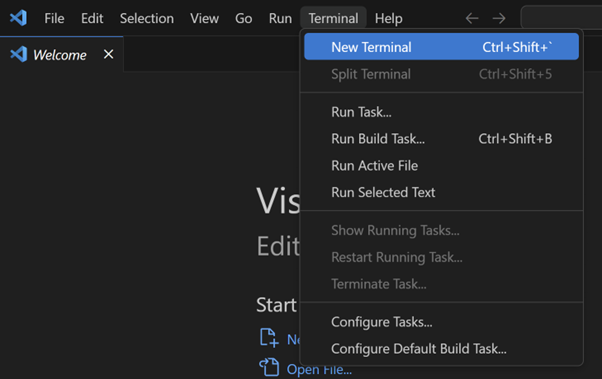
Figure 2 — Opening a New Terminal
Step 3: As shown in Figure 3, a new terminal displays. a new terminal automatically defaults to opening the PowerShell command line interface (CLI). For this exercise, we will use PowerShell, although you can also use Git Bash (see NOTE below).
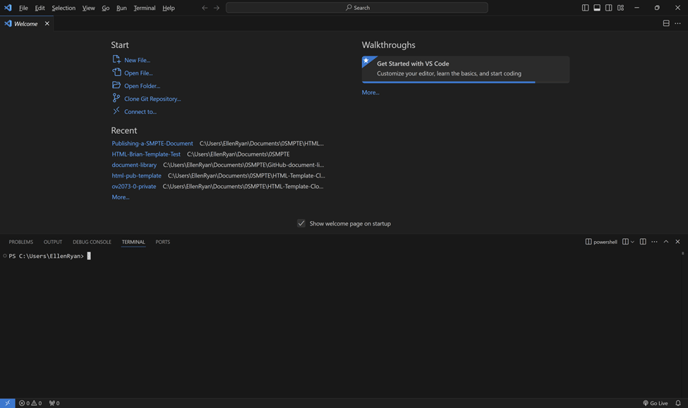
Figure 3 — New Terminal Opened
The directory defaults to your User folder.
Step 4: Determine where you would like to locate your repository clone. For this exercise, the location of the cloned repository will be as follows:
C:\Users\EllenRyan\Documents\0SMPTE\HTML-Document-Templates
The following command creates the clone:
git clone --recurse-submodules <github repository source> <cloned repository location>
- git clone performs the clone operation.
--recurse-submodulesincludes all of the modules in the repository in the clone. This is critical for proper display of the HTML preview.<github repository source>specifies the repository to be cloned.<cloned repository location>is the destination on your system that you specify for the cloned repository.
Using https://github.com/SMPTE/Publishing-a-SMPTE-Standards-Document.git (the repository source code that you copied in Section 6) and C:\Users\EllenRyan\Documents\0SMPTE\HTML-Document-Templates as the destination, the command is as follows:
git clone --recurse-submodules https://github.com/SMPTE/Publishing-a-SMPTE-Standards-Document.git C:\Users\EllenRyan\Documents\0SMPTE\HTML-Document-Templates
NOTE When working with the cloned repository, you will use the Git Bash CLI to perform operations; however, you can create the clone using either CLI. If you use Git Bash, however, it is important to note the following:
- Git Bash is case sensitive, whereas PowerShell is not.
- Git Bash uses Unix notation to specify directory paths. As such, the destination path would be specified as:
C:/Users/EllenRyan/Documents/0SMPTE/HTML-Document-Templates
If using Bash, the clone creation command would be as follows:
git clone --recurse-submodules https://github.com/SMPTE/Publishing-a-SMPTE-Standards-Document.git C:/Users/EllenRyan/Documents/0SMPTE/HTML-Document-Templates
You can also simplify the clone command by changing the directory to the destination folder; therefore, there is no need to specify a destination folder in the command.
- As shown in the first line of Figure 4, use the cd command to change the directory to the destination folder.
- As shown in the second line in Figure 4, enter the following command:
git clone --recurse-submodules https://github.com/SMPTE/Publishing-a-SMPTE-Standards-Document.git
The operation displays in the terminal (Figure 4):
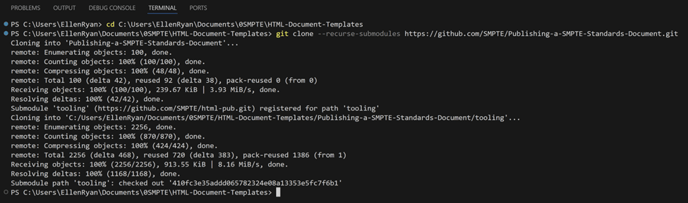
Figure 4 — GitHub Repository Clone Operation Using PowerShell
Step 5: In order for the Live Preview to work, the folder containing the repository must be opened as shown in Figure 5. Go to File > Open Folder.
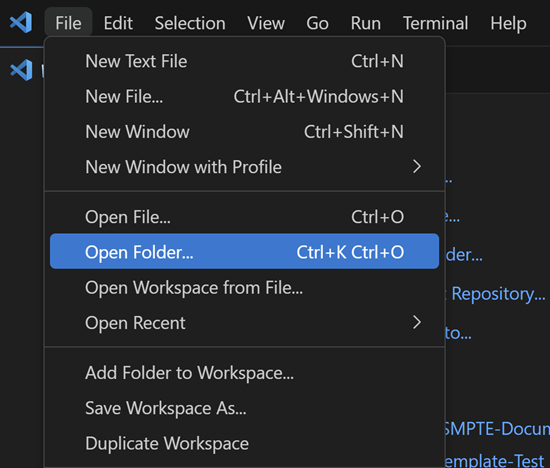
Figure 5 — Open Folder Containing Cloned Repository
Step 6: On your system, navigate to the folder that contains the cloned repository, highlight the folder that contains you cloned repository, and then click Select Folder (Figure 6).
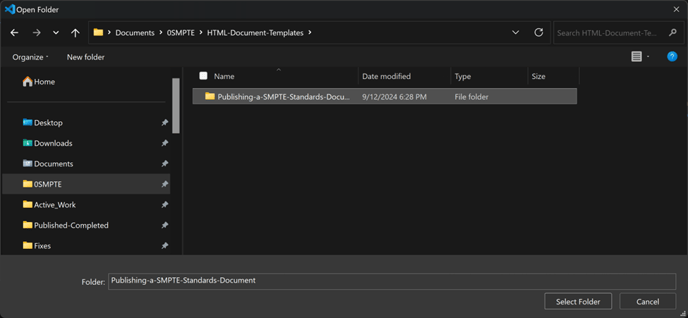
Figure 6 — Opening the Repository Folder
Step 7: The following is displayed (Figure 7). Do one of the following:
- If you would like to stop that prompt from future display, then enable the Trust the authors… Click Yes, I trust the authors.
- Click Yes, I trust the authors.
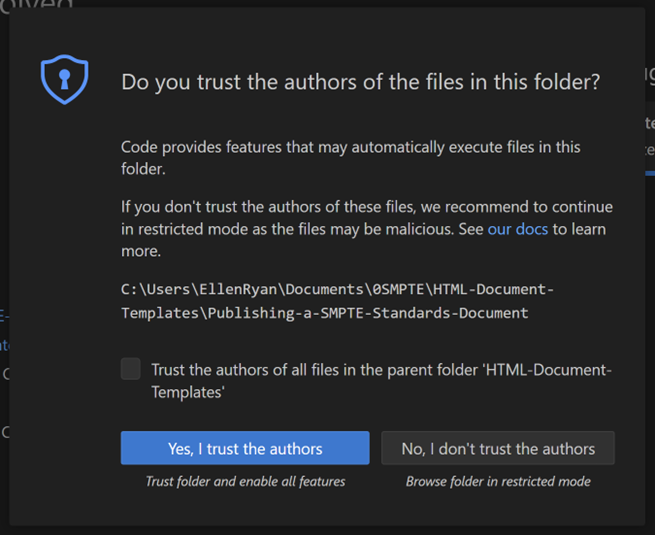
Figure 7 — Author Trust Prompt
Step 8: The navigation for the cloned repository displays (Figure 8). Close the Welcome
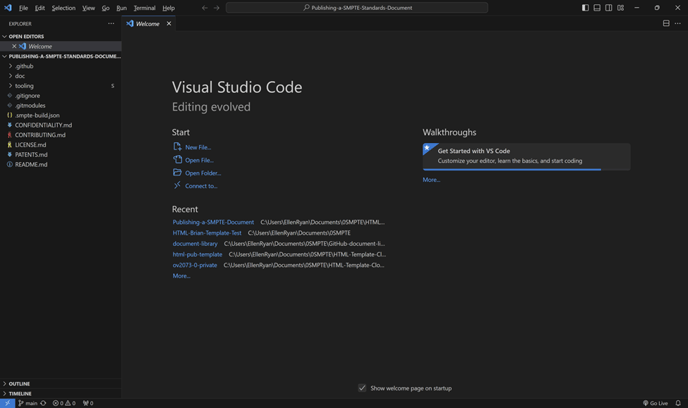
Figure 8 — Cloned Repository
Step 9: From the doc dropdown, select main.html (Figure 9). This is the file that you will edit.
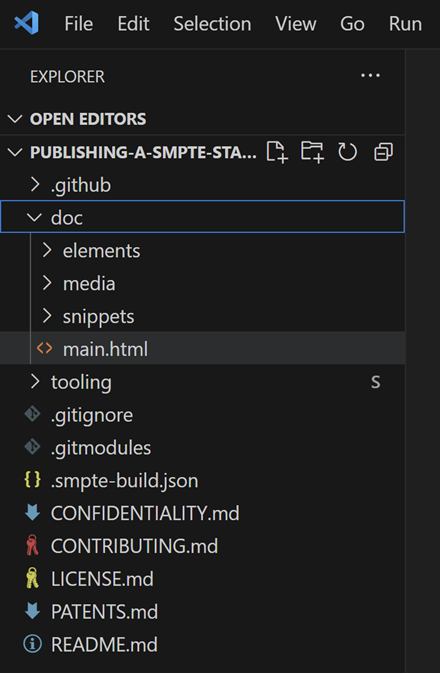
Figure 9 — Open main.html File
The HTML displays (Figure 10). This is the code that you will edit.
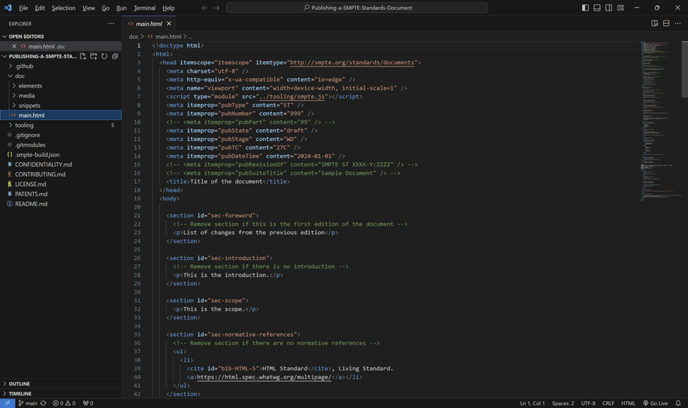
Figure 10 — HTML Code Open for Editing
Step 10: At the upper right corner of the interface, there is a Live Preview icon (Figure 11). Click the icon.
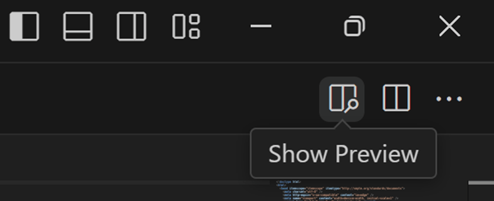
Figure 11 — Live Preview Icon
The Live Preview displays (Figure 12). You are now ready to edit!
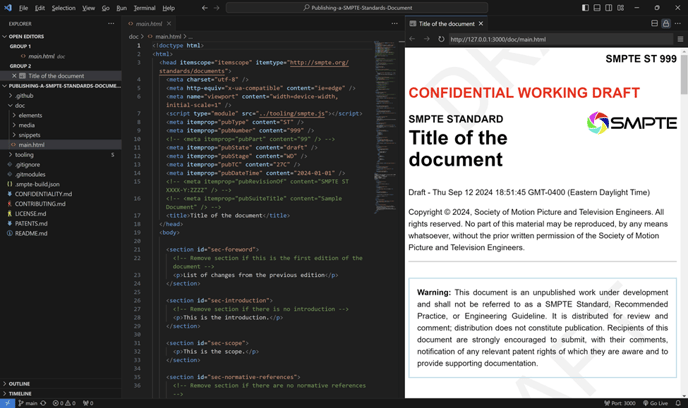
Figure 12 — Interface Showing Live Preview
The Live Preview provides a true depiction of the document as it will appear in a browser. It updates as you edit. It is not, however, an editor in itself, i.e., you cannot type in the Live Preview, nor will clicking in the Live Preview relocate the editing cursor to the corresponding code.
7.2 Navigate Your Repository Using the VS Code Interface
The interface provides tools to optimize editing:
- You can arrange the interface using the icons at the top right of the interface (Figure 13).
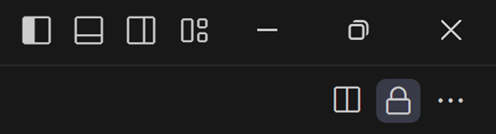
Figure 13 — Interface Layout Tools
- When your cursor is in the HTML code, you can press Ctrl+F to search for strings in the HTML.
- At the right of the HTML, there is a column that displays a miniature proxy of the entire HTML code in the document (Figure 14).
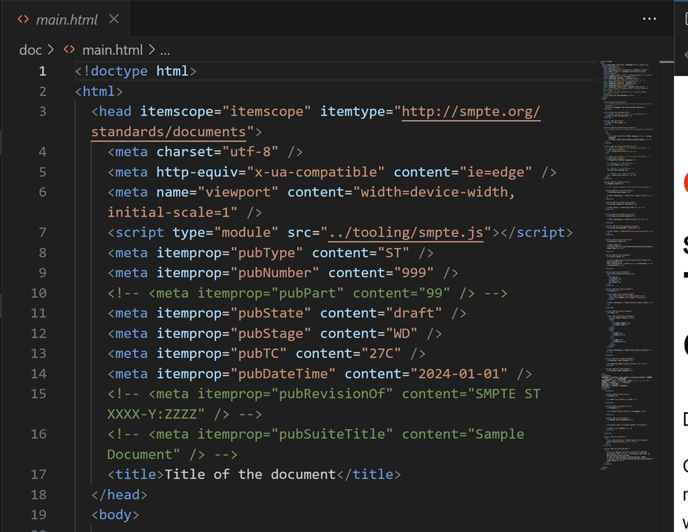
Figure 14 — HTML Code Showing Miniature Proxy of the HTML Code
Figure 15 shows a close-up of the proxy. You can click anywhere in the proxy to quickly navigate to the corresponding block of code in the HTML document.

Figure 15 — Close-up of Miniature Proxy of the HTML Code
There is one more set of steps to perform to complete your project setup. Proceed to Advanced: Install the Pre-commit Hook.