![SMPTE_logoWHITE-RGB-2.png]](https://www.smpte.org/hs-fs/hubfs/SMPTE_logoWHITE-RGB-2.png?height=40&name=SMPTE_logoWHITE-RGB-2.png)
Creating a New Project
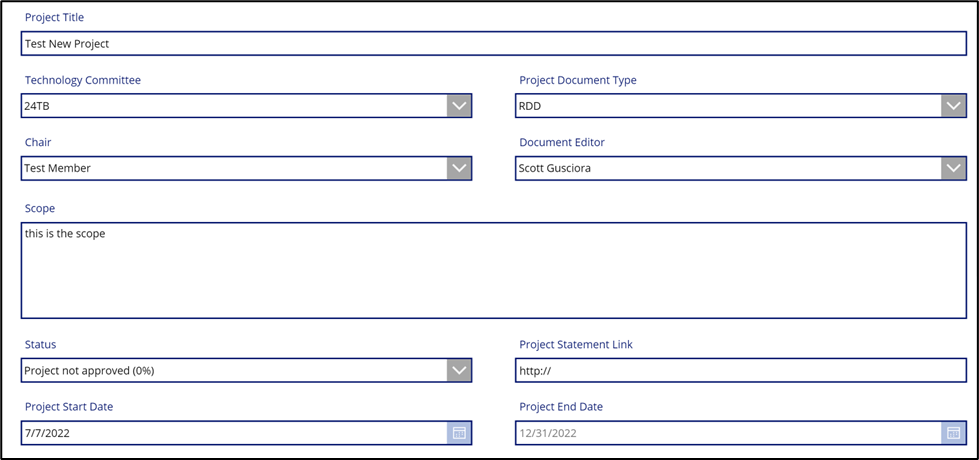
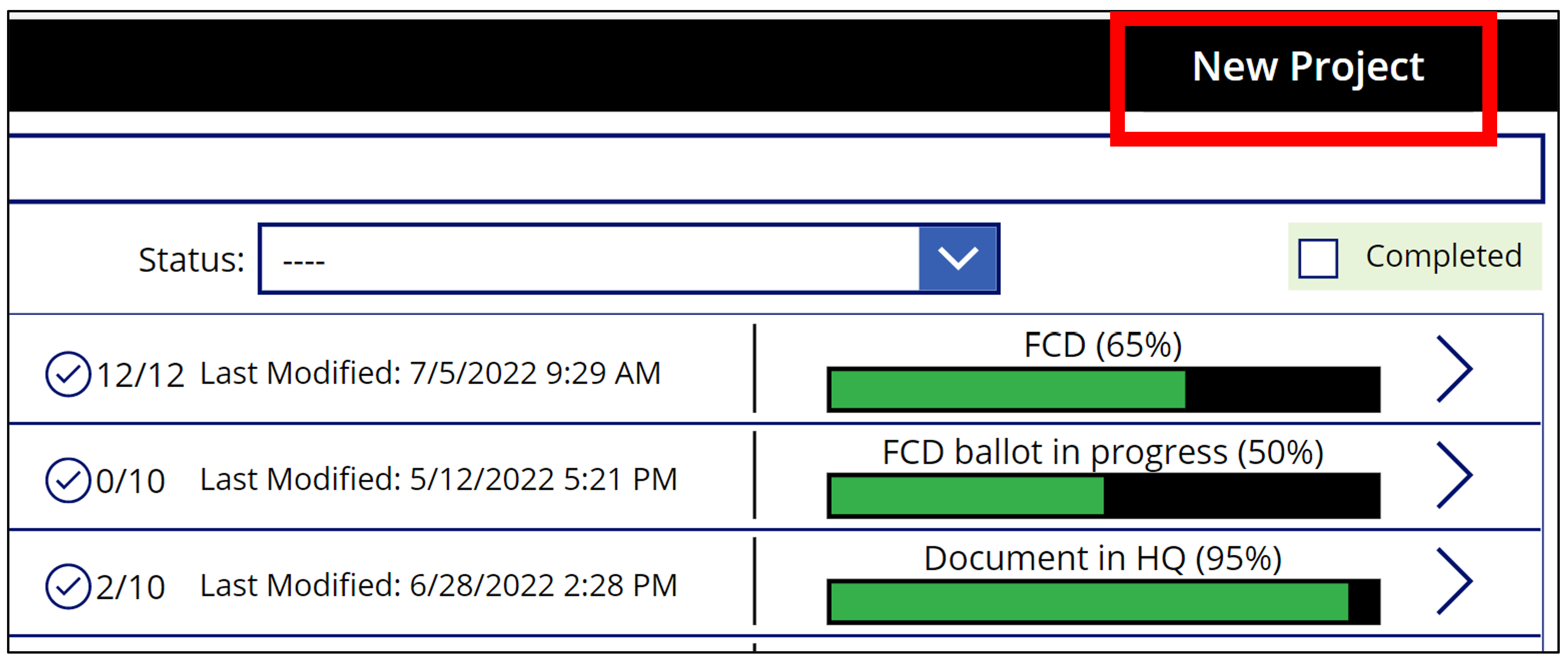 Projects are created in the projects app which can be found on the app icon bar on the left of the Teams Desktop or Online App. To create a project click on the New Project button at the top right of the Projects App home screen. Click it to navigate to the new project form.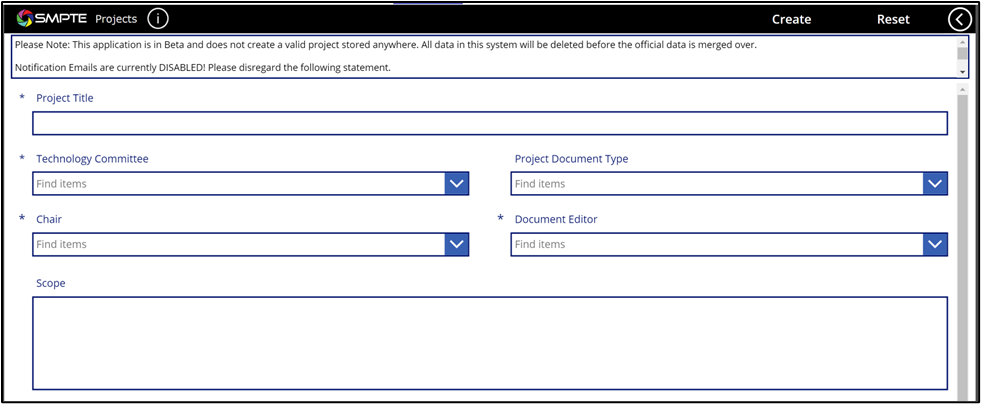
All fields marked with an asterisk are required. The status field will only populate if a project document type is selected. Different buckets can be selected for different project document types.
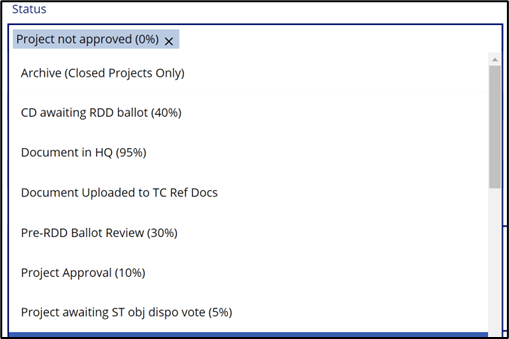
Click the Create button to add the project to the database. Using the reset button will clear the entire form. If there is an incorrect piece of information, the form will provide you with an error. Otherwise, it will redirect you to the project view screen.
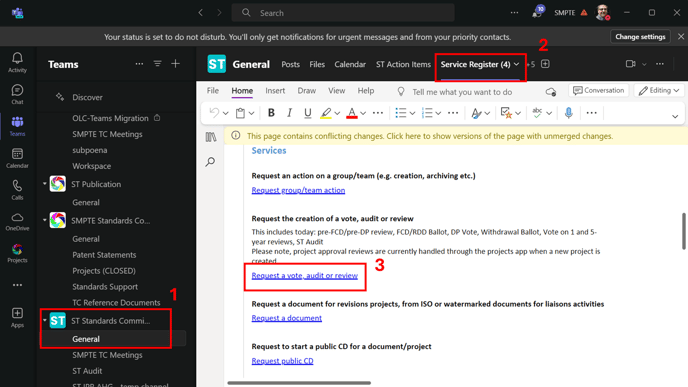
Please request a 2-week Project Review once the project is created and you feel ready to submit it to the TC and ST. To do so go to the Service Register which is attached to the tab bar in the General channel of the Standards Committee (ST) Team on the SKN.
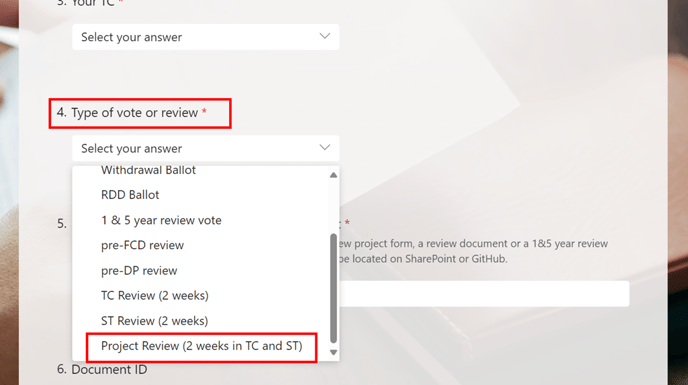
Fill out the "Request a Vote or Review" form that opens up and make sure to select "Project Review (2 weeks in TC and ST) under "Type of vote or review". Click on "Submit" once you are done filling the form. Make sure to fill in all mandatory fields.
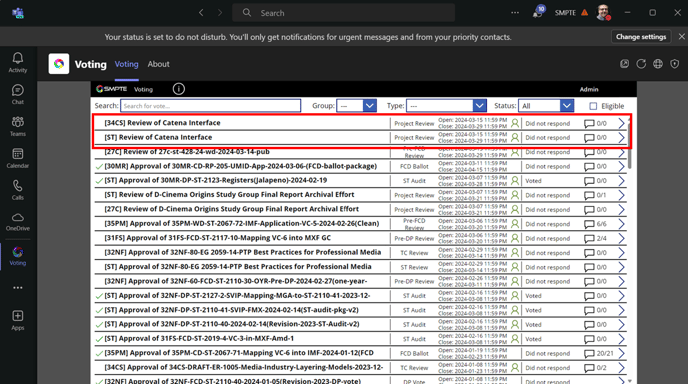
HQ will review the submitted request and create the actual reviews. The review will become visible in the Voting App when that is done. They will become active at 11:59 PM on the day HQ created them. Like all votes and reviews Notification emails will be automatically send to the assigned TC and ST.